
BitLocker errors in the my account portal

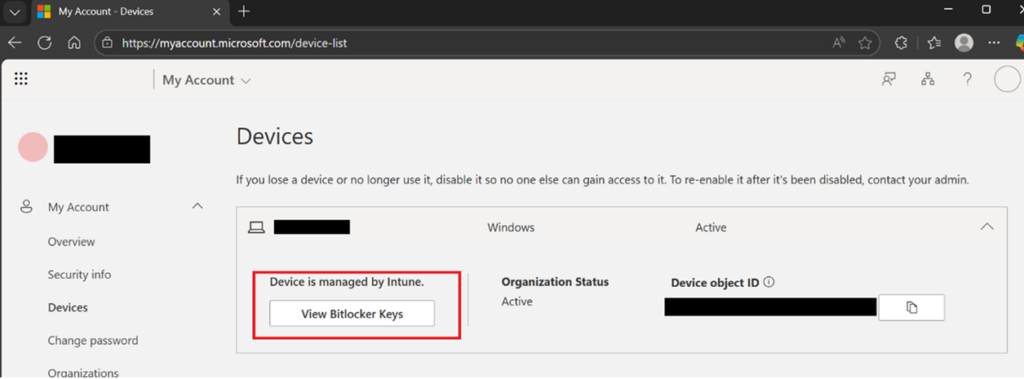
Sometimes you encounter weird errors…Recently, an end-user contacted me because they were facing a frustrating issue: their BitLocker recovery key not showing in portal (specifically the My account portal page). The strange part? It worked perfectly for me. The user mentioned that they would briefly see a recovery key popup, but it would disappear almost instantly.
The investigation
I hopped on a call with the user to investigate. We navigated to the device list and clicked the “View Bitlocker Keys” button. Sure enough, a popup flashed for a split second before vanishing, leaving a tiny, cryptic error message in the bottom-left corner: bitlockerRecoveryKeyError.
Since UI errors in the Microsoft 365/Entra can be somewhat vague, I fell back on the browser developer tools (Ctrl + Shift + I, if you are using Microsoft Edge). After reloading the page and clicking the button again, the network tab revealed the error:
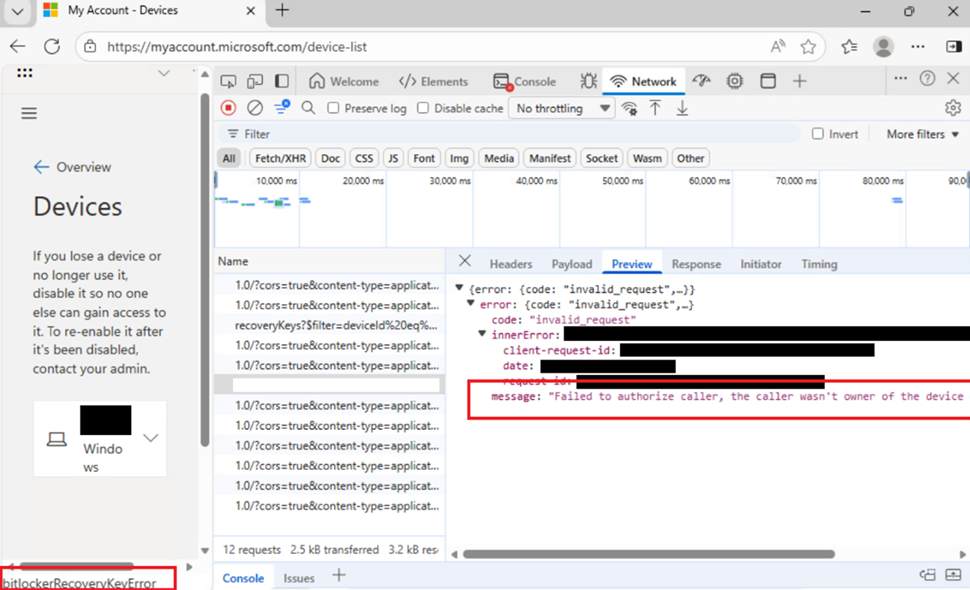
{
  "error": {
    "code": "invalid_request",
    "message": "Failed to authorize caller, the caller wasn't owner of the device or one of the admin roles.",
    "innerError": {
      "date": "",
      "request-id": "",
      "client-request-id": ""
    }
  }
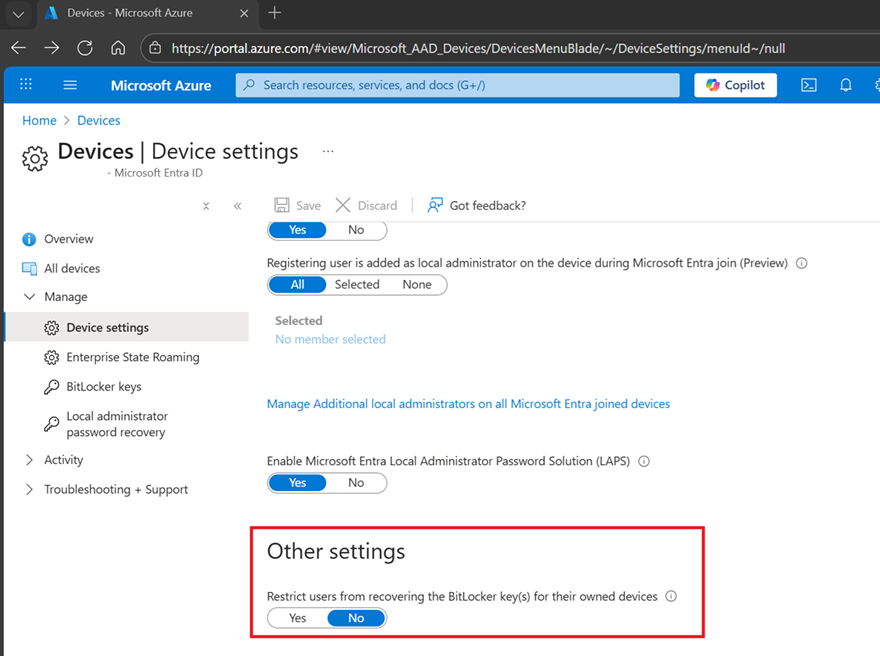
}That is a bit odd, the user is definitely the owner of the device! My first thought was a global restriction. In Microsoft Entra, under Devices > Device Settings, there is an option:
Restrict users from recovering the BitLocker key(s) for their owned devices.
However, this was set to “No”, so that wasn’t the cause.
The solution
Since the device is managed by Microsoft Intune (https://intune.microsoft.com), I decided to verify the primary user assignment. I navigated to the device in the Microsoft Intune portal and checked the properties.
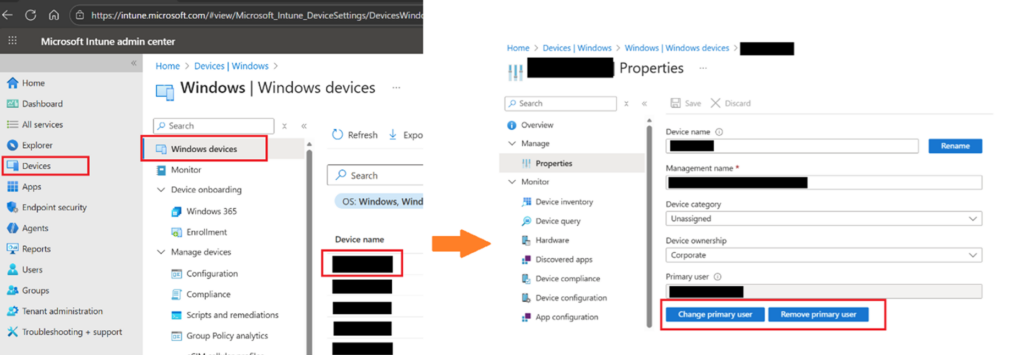
While the user was listed as the primary user, something felt off. We had been tinkering with Microsoft Entra Connect in the preceding weeks, and it’s likely the user object was modified or re-synced, causing a mismatch between the user and the Entra object.
In the end the solution was quick and simple:
1. Remove the primary user from the device in Intune.
2. Save the changes.
3. Re-assign the same user as the primary user.
4. Save the changes.
Once the reassignment processed, the issue was solved instantly! The user could once again view their recovery keys without the popup disappearing.
Tags: BitLocker, bitlockerRecoveryKeyError, Device Management, Entra Connect, Intune, Microsoft Entra, Microsoft Intune, Primary User, Windows 10, Windows 11