
Shared Device SSO Issues in Intune: The Cause, the Fix, and the Script

If you’re using shared devices with Microsoft Intune and self‑deploying Autopilot profiles, you’ve probably run into an annoying issue with SSO. Everything in your environment is configured correctly – users are licensed, Entra Connect is installed with the SSO option enabled – yet end users still get those persistent pop‑ups with the dreaded “Continue to sign in” message and the aka.ms/sso-info link.
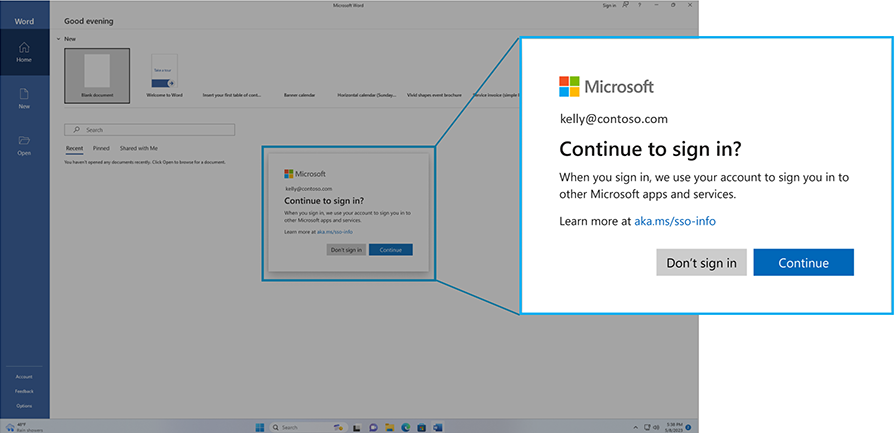
What makes this even stranger is that users on devices deployed with a user‑driven Autopilot profile don’t see the issue at all.
The good news? It’s not your configuration. The bad news? It’s Microsoft’s compliance with the Digital Markets Act (DMA) in the European Economic Area (EEA).
According to Microsoft’s blog post Upcoming changes to Windows single sign-on:
Starting in early 2024, after users with a Windows region set to a country in the European Economic Area sign in to Windows, the first application or service the user accesses in the latest builds of Windows 10 and Windows 11 will show a new notice to users. This notice will ask users if they would like to sign in to the application with the same credentials used to sign in to Windows. The notice also informs users that when they sign in, Microsoft will use those same credentials to sign in to other Microsoft apps running on Windows.
The reason your user‑driven Autopilot devices don’t show this prompt is simple: users already authenticate during the Autopilot process, so Windows treats SSO consent as implicitly granted. Unfortunately, this means your environment ends up with inconsistent user experiences – some devices show the “Continue to sign in” prompt, others don’t. And yes, this leads to confused users and odd side effects, like Microsoft 365 Apps not activating automatically without user interaction….. Your helpdesk is going to love that.
So… is there a solution? YES! As of 15 July 2026, Microsoft is rolling out a new security update that allows IT administrators to automatically accept SSO prompts on behalf of end users. This finally brings consistency back to shared device deployments. You can read more about it here.
To auto‑accept the Windows SSO prompts, Microsoft introduced a new registry key that allows administrators to pre‑approve the consent dialog:
Registry Path: HKLM\SOFTWARE\Policies\Microsoft\Windows\AAD
Value: AutoAcceptSsoPermission (DWORD) = 1
Microsoft states that this setting can be deployed using:
- Group Policy (GPO)
- Microsoft Intune or similar mobile device management (MDM) tool
- Microsoft Configuration Manager
- Any management tool that supports registry policy deployment
However, unless I’ve completely overlooked something, this option does not currently appear in Intune. That means we need to create our own method to push the registry key to devices.
Using standard Intune Scripts isn’t ideal here – they only run once, and if the script fails during Autopilot, it won’t retry. Remediation scripts are closer to what we need, but they run on a schedule even when the setting is already correct, and I want devices to be fully configured immediately after Autopilot completes, not after the next remediation cycle. Not even mentioning the license requirements for remediation scripts…
A Win32 app is the most reliable approach. It allows us to:
- Set the registry key only when the value is missing or incorrect
- Retry the installation if it fails (with controlled retry behavior)
- Ensure the device is properly configured right after Autopilot finishes
To deploy this registry key, we’ll create a small Win32 app containing two PowerShell files:
- install.ps1 – creates and sets the registry value
- uninstall.ps1 – removes the registry value if needed
The full source code and the packaged .intunewin file are available on my GitHub page.
Creating the uninstall.ps1
$registryKeyPath = "HKLM:\SOFTWARE\Policies\Microsoft\Windows\AAD"

if(!(Test-Path -Path $registryKeyPath)){
	New-Item -Path $registryKeyPath -Force | Out-Null
}

New-ItemProperty -Path $registryKeyPath -Name "AutoAcceptSsoPermission" -Value "1" -PropertyType DWORD -Force | Out-NullPlease note that we don’t check if the property has the correct value, this is done by the detection rule in Intune.
Creating the uninstall.ps1
$registryKeyPath = "HKLM:\SOFTWARE\Policies\Microsoft\Windows\AAD"

if((Get-ItemPropertyValue -Path $registryKeyPath -Name "AutoAcceptSsoPermission" -ErrorAction SilentlyContinue))
{
    Remove-ItemProperty -Path $registryKeyPath -Name "AutoAcceptSsoPermission" -Force
}
Adding it to Microsoft Intune
After packaging the Win32 app using IntuneWinAppUtil.exe, we still need to configure the commands and detection rules in Microsoft Intune. You can use the following:
Install Command: %SystemRoot%\Sysnative\WindowsPowerShell\v1.0\powershell.exe -ExecutionPolicy Bypass -WindowStyle Hidden -file .\install.ps1
Uninstall Command: %SystemRoot%\Sysnative\WindowsPowerShell\v1.0\powershell.exe -ExecutionPolicy Bypass -WindowStyle Hidden -file .\uninstall.ps1
Install behavior: System
Detection option: Registry
Key path: HKEY_LOCAL_MACHINE\SOFTWARE\Policies\Microsoft\Windows\AAD
Value name: AutoAcceptSsoPermission
Detection method: Integer comparison
Operator: Equals
Value: 1
Microsoft Intune cannot use HKLM in the detection rule, so always use HKEY_LOCAL_MACHINE.
Once that’s done, all that’s left is assigning the app to your devices and your shared Intune devices will automatically accept the Windows SSO prompt.
Tags: AutoAcceptSsoPermission, Autopilot, Continue to sign in popup, DMA, Microsoft 365 activation issue, Microsoft Intune, shared devices, SSO